How to Download TikTok Videos on Mac (MacBook) Without Watermark
Save a public TikTok video to your MacBook or iMac without the watermark using Safari or Chrome, then find the MP4 in Downloads. No app needed.
On tiktok.com the Download video option is often missing, and when it’s there the file carries the TikTok logo and the creator’s username. On a Mac you can get the clean copy with nothing but your browser: copy the link, paste it into Clipsavely, and the MP4 lands in your Downloads folder. It works on every MacBook Air, MacBook Pro, iMac and Mac mini, for public videos.
1. Copy the video link on tiktok.com
- Open the video on tiktok.com in Safari or Chrome.
- Click Share (the arrow next to the video).
- Choose Copy link.
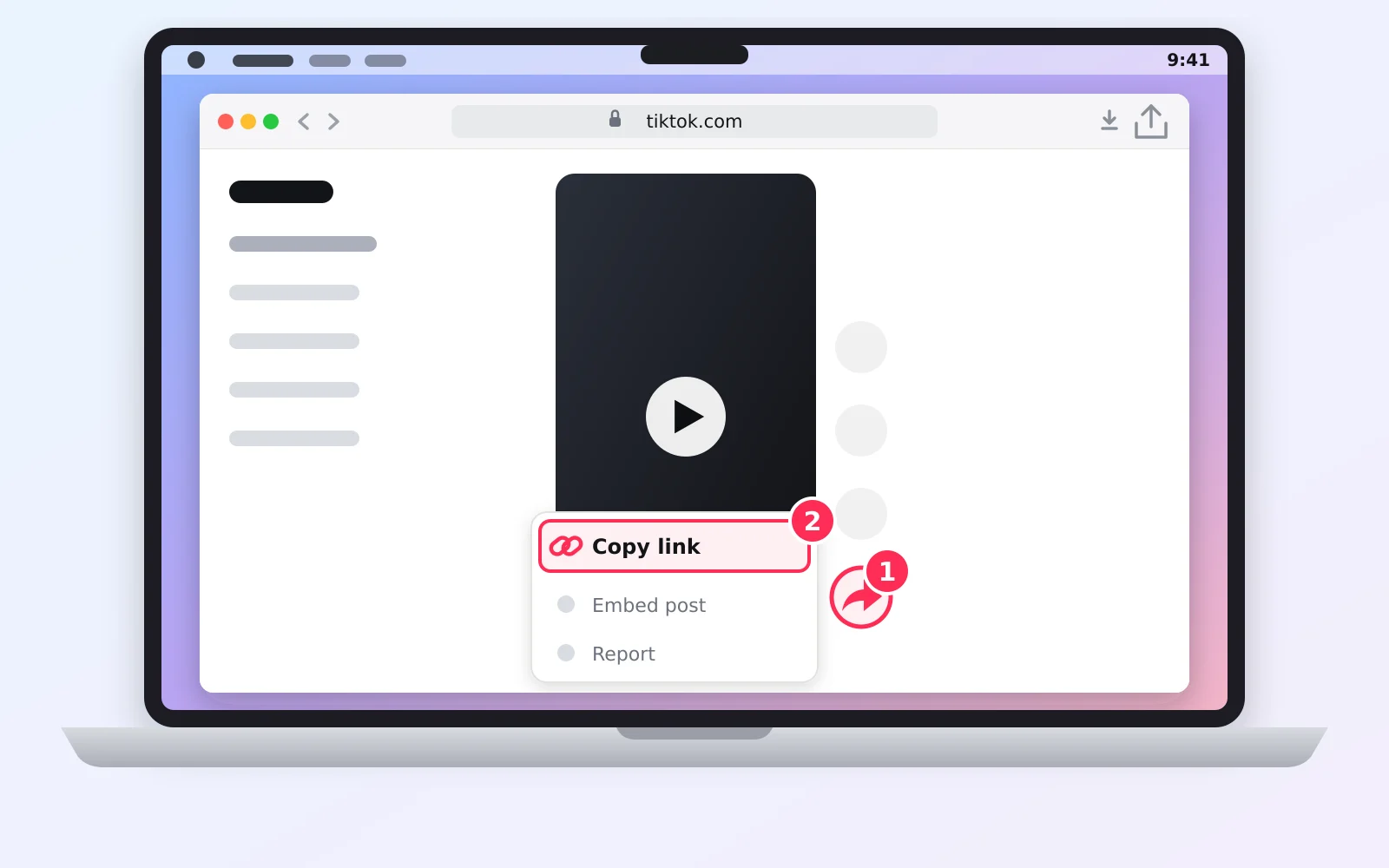
When the video is open on its own page, you can also press ⌘L and ⌘C to copy the address from the address bar. A link sent from your phone works too: vm.tiktok.com short links and full tiktok.com/@name/video/… links are both fine.
2. Paste it into Clipsavely
- Open the TikTok downloader without watermark in a new tab.
- Click Paste, or click in the box and press ⌘V. Then click Find Video.
- Click Download next to a quality. The one tagged Best is the highest TikTok offers for that video.
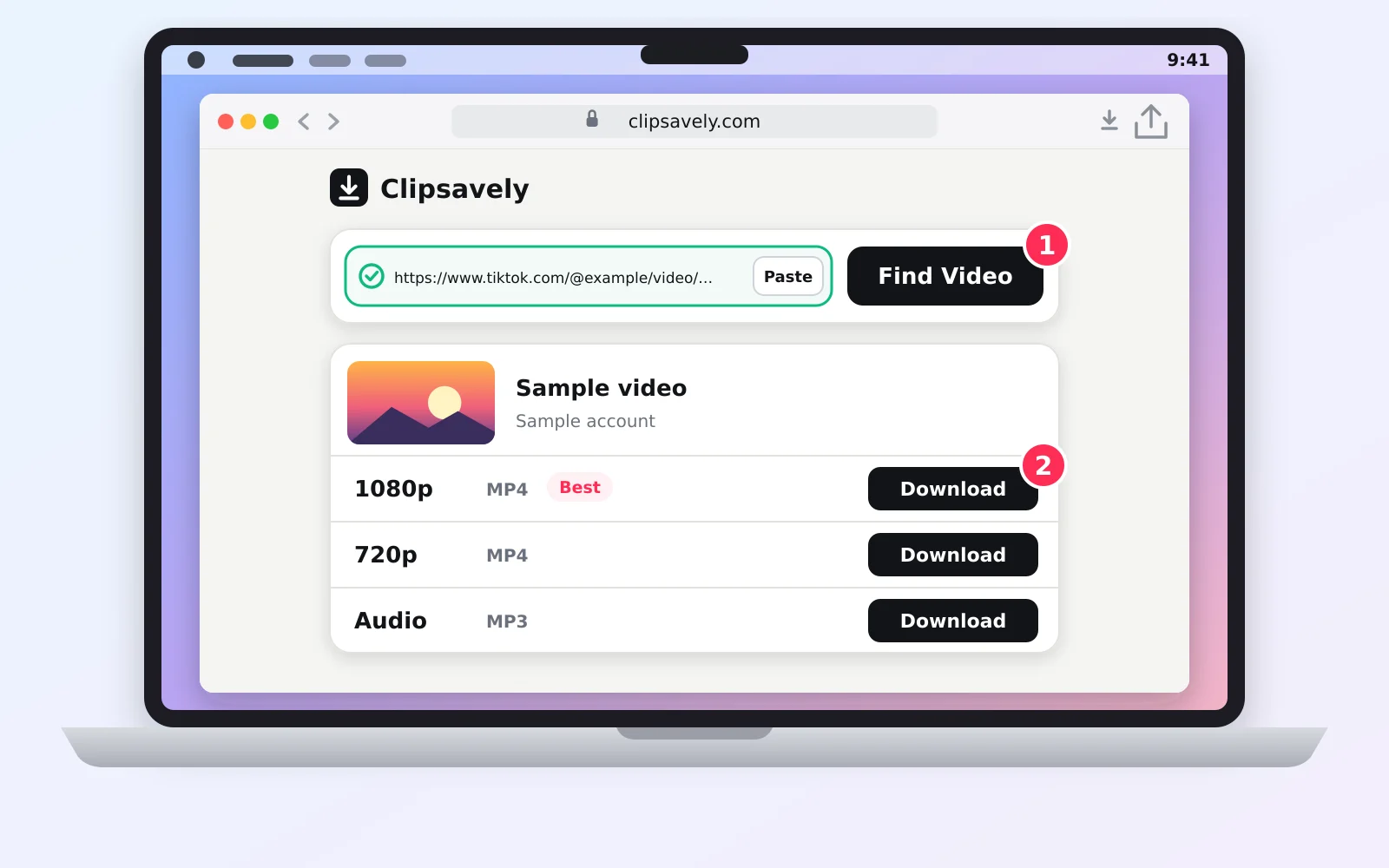
The file is prepared without the watermark, so the download starts after a few seconds. Some qualities carry an HEVC label. Macs play HEVC in QuickTime and Safari, so that file is fine to watch; if an older editing app won’t open it, download another option.
3. Find the video on your Mac
The file goes straight to your Downloads folder. You can reach it three ways:
- Safari: click the Downloads button (the arrow) in the toolbar, or press ⌥⌘L. The magnifier next to the file shows it in Finder.
- Finder: click Downloads in the sidebar. From the menu bar it’s Go → Downloads.
- Dock: the Downloads stack next to the Trash shows the newest file first.
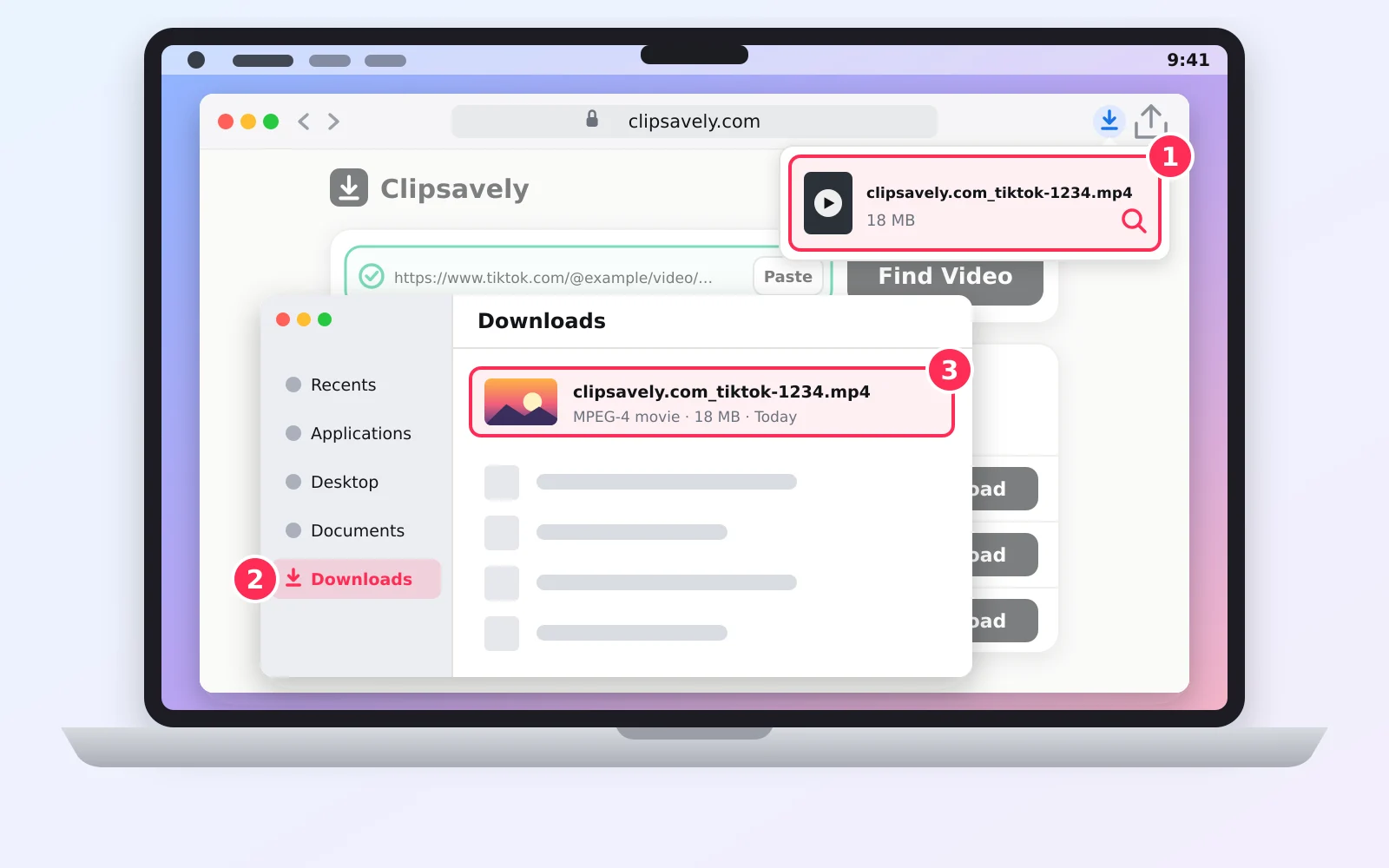
The file name starts with clipsavely.com_, so a Spotlight search (⌘Space) for “clipsavely” finds it fast.
Only want the sound?
Choose Audio (MP3) in the same list to save the video’s sound as an MP3 file. It goes to the same Downloads folder and opens in the Music app or QuickTime. More in the TikTok MP3 downloader.
Edit it or send it to your iPhone
Double-click the MP4 to watch it in QuickTime Player; Edit → Trim (⌘T) cuts it shorter. Drag the file into iMovie, Final Cut Pro or CapCut to edit it. To move it to your phone, right-click the file and choose Share → AirDrop; it lands in the Photos app on your iPhone.
Chrome, Firefox and other browsers
The steps are the same in Chrome, Firefox, Edge, Brave and Arc. Only the download list moves: open the browser menu and choose Downloads. In Chrome the shortcut is also ⌥⌘L.
If the download doesn’t start
- Safari asks “Do you want to allow downloads on clipsavely.com?” Click Allow. If you clicked Deny before, change it under Safari → Settings → Websites → Downloads.
- The Paste button does nothing. Safari sometimes shows a small Paste bubble you have to click. If it doesn’t, click in the box and press ⌘V.
- You can’t find the file. Check Safari → Settings → General → File download location. If it says “Ask for each download”, the file is wherever you chose to save it.
- It’s a photo slideshow or a private video. Slideshows aren’t supported yet, and private videos can’t be downloaded. See why TikTok videos won’t download.
On your phone the route is a little different: how to save TikTok videos on iPhone and on Android. For how the clean copy works, read how to download TikTok without watermark.
Only save videos you have the right to keep, and credit the creator if you repost them.
Frequently asked questions
Do I need an app to download TikTok videos on a Mac?
No. Clipsavely runs in your browser, so nothing has to be installed. Safari, Chrome and Firefox all work on any MacBook or iMac.
Where do downloaded TikTok videos go on a MacBook?
To the Downloads folder in your home folder. Open it from Finder’s sidebar, from the Downloads stack in the Dock, or from your browser’s Downloads list.
Will the video have the TikTok watermark?
No. Clipsavely saves TikTok’s clean copy of the video, without the logo and the username overlay.
Can I download TikTok videos with Safari?
Yes. Paste the link into Clipsavely in Safari and click Download. If Safari asks whether to allow downloads from clipsavely.com, click Allow.
Can I download a private TikTok video?
No. Only public videos are supported. Clipsavely never asks for your TikTok login, so it can’t see private or friends-only videos.